Every June, I take time to update my CV and add events and materials from the past year. I noticed the trend of creating design-based CVs/Résumés and I wanted to try my hand at what mine would look like using the branding tools and templates in AdobeExpress.

There are currently dozens of templates available. I chose the two-column design and added my branding using the branding tool. I used the topographic background that has been repeated in all my branding this year and my normal colors of cyan and dark blue-green. I changed my social media circle to be my face instead of a Bitmoji and then used a tab layout to help create the 3D layering.
After I finished, I really liked what I had but I wanted to mash up the designs with my previous Google Docs CV. So, then I got to thinking about how would I build a page template and import it into Google Docs.
So, I started searching to see what others had done. Lots have gone the Google Slides route and created a template background then built the document worksheet from Google Docs. (Example I found on Infused Classroom) This is a great workaround especially if you are creating manipulatives for a digital environment that has touchscreens in your classroom. What I was wanting to do was create a usable template for my professional letters and possibly help my school create a digital letterhead that also worked.
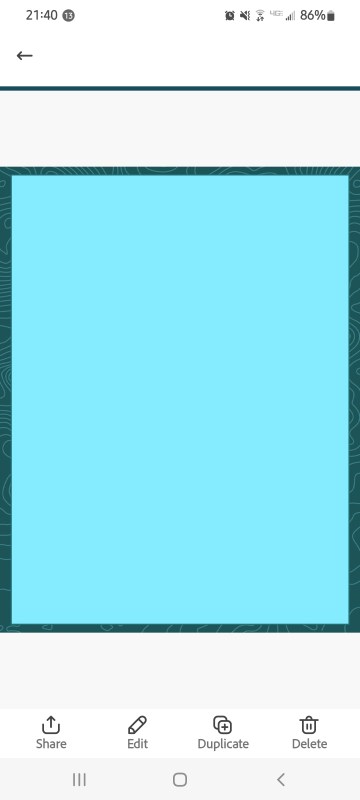
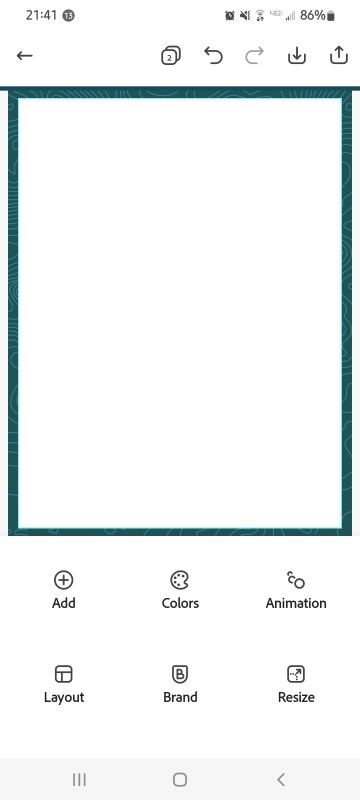
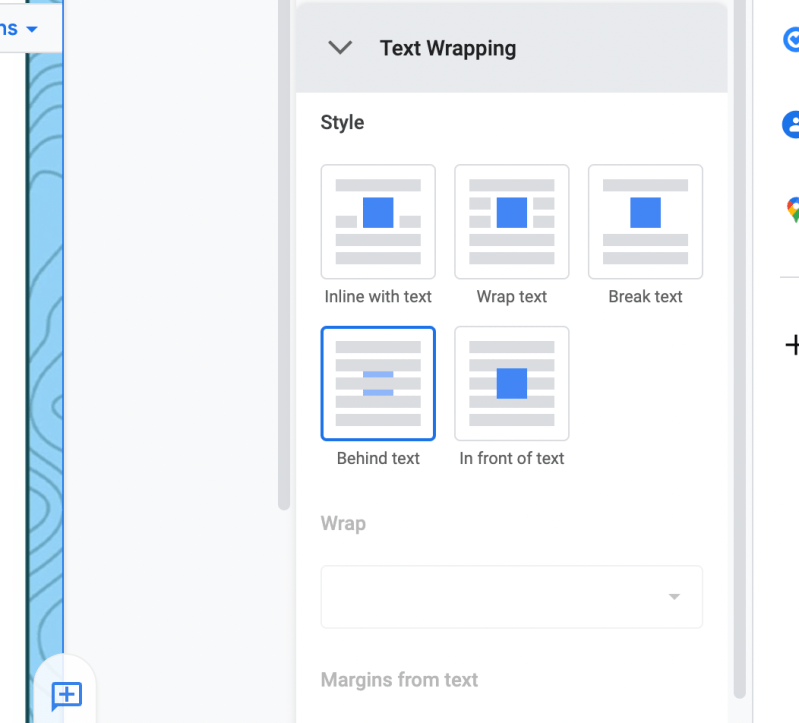
Making a simple letterhead is easy and requires just a few additions to an 8.5×11 layout. After you make a basic background design, add it to a Google document that you’ve already completed by simply inserting the image into the header of the Google Doc. That way it’ll be repeated on all continuous pages in that s section. I found it is easier to do this after you’ve written on the Google Doc because it will sometimes want to try and change the header as you continue to type. This should be the last step you take before you would print/download the Google doc as a PDF file.



 BFWClassroom
You must be logged in to post a comment.