
With snow days happening again, I have had some time to think about how I want my Zoom backgrounds to be different than the collection of stock images and just the list of Star Wars backgrounds. When we were all first at home, I made daily backgrounds to show something fun from the news and list of the assignments from our LMS. Now, our online meetings are about 2.5 hours of office calls for students who have questions and to complete grading during the afternoon. So, I thoughout how can i take the new video options in Adobe Express and jazz up my background images.

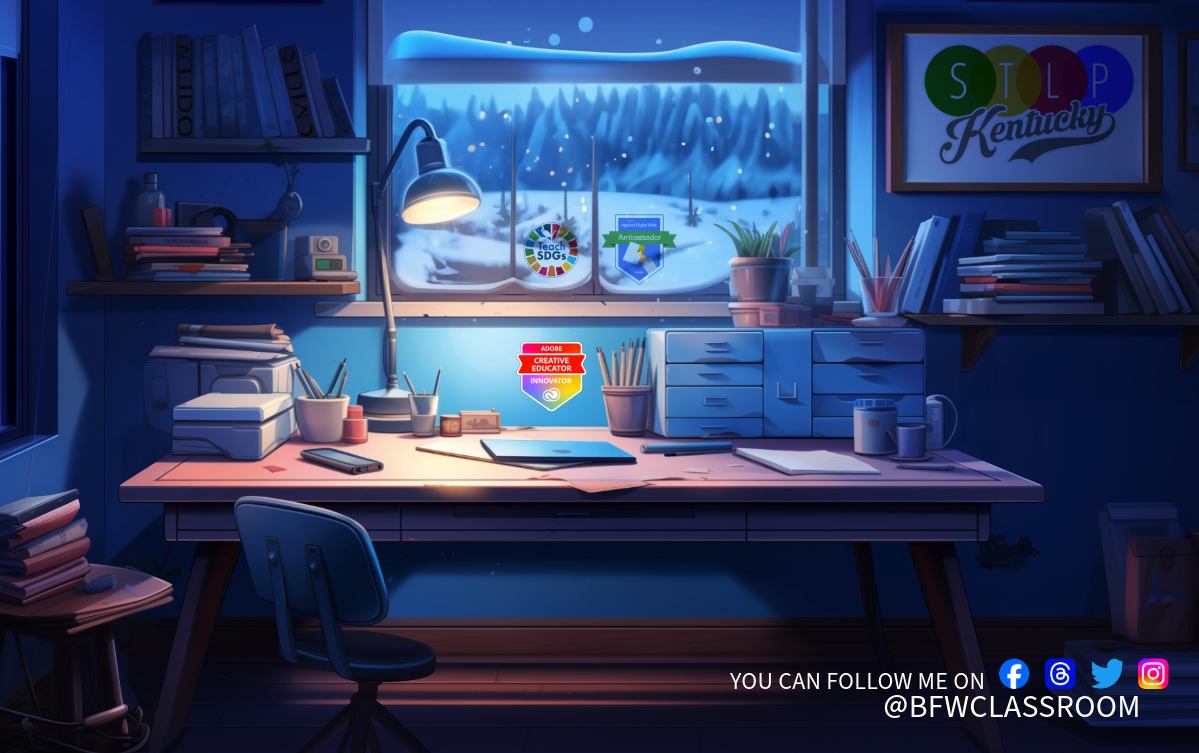
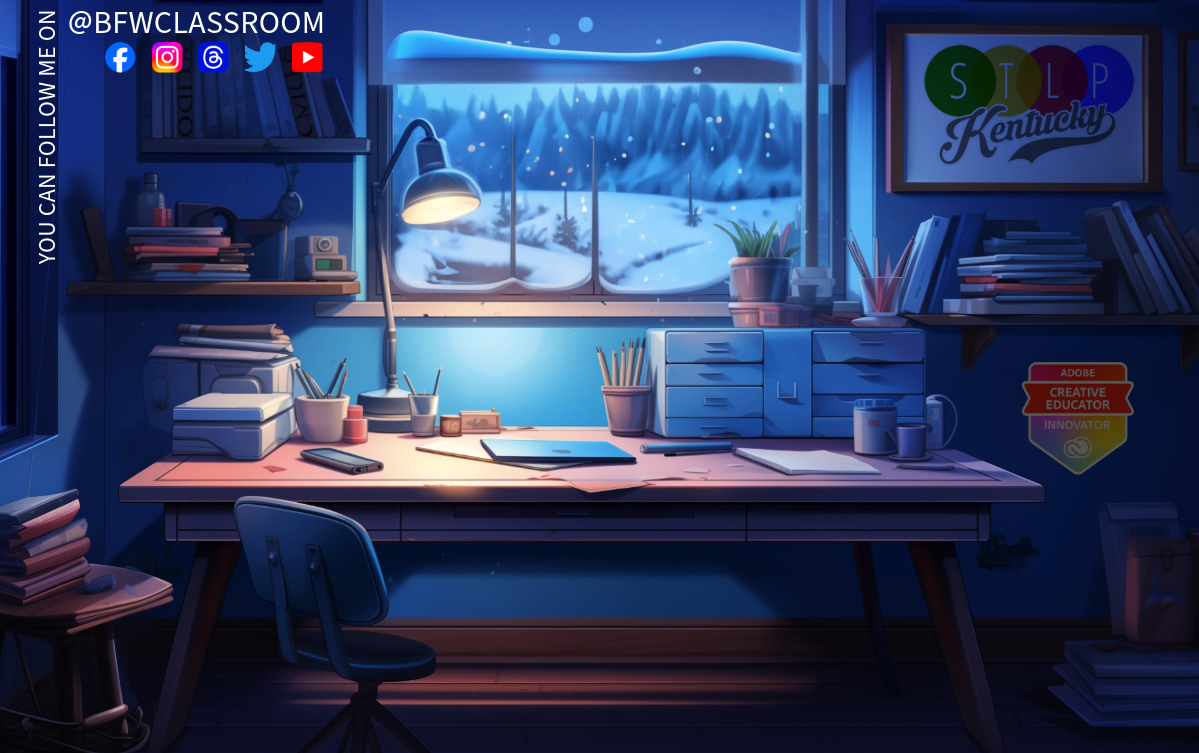
The initial version featured a scene in an apartment with a view of the city, showcasing the creative area of a home office using Firefly. Subsequent adjustments were made to the image, such as incorporating Generative Fill to change the city scape to a snowy countryside and produce an empty picture frame in the upper corner to accommodate the addition of the STLP logo as a poster. Furthermore, stickers displaying the Teach SDGs, Google Ambassador, and ACE Innovator badges were included in the image using the Multiply tool. Additionally, I relocated the Social Media follows feature. Initially situated in the bottom right, I observed that my camera obstructed this area, prompting me to relocate them to the top left.
Creating the Animation
Then, I set out to create a loop background video that could be customized for different meetings. I utilized the Remove tool to delete the window, which gave me a good starting point. However, I later had to eliminate the lamp and transform the window into a single pane window against an empty background. Additionally, I established a middle layer for the snowfall video, positioning it between the foreground and the background cityscape. To streamline the process, I downloaded the image with the added stickers and once again used the remove tool to achieve the empty window effect.
How To Make the Video Loop
Making the video “seemless” requires a looping effect. In Adobe Express you can do this by taking you cover image (the room) and extended its time, for me I made it a min. Then I duplicated the video file and moved it down the timeline so that it overlaid the previous one. I then animated it to fade in and out for a more natural look.
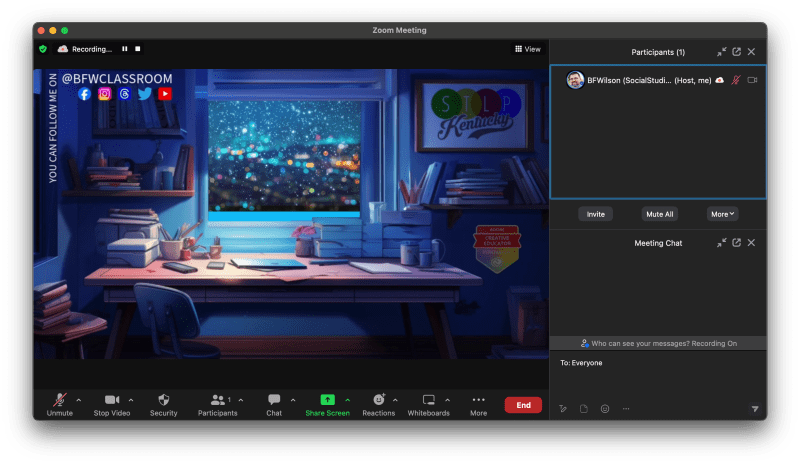
Zoom and Google Meet offer the option to use small video files as a looped background, but it’s important to consider the device’s CPU capability before using large files. For smoother performance, it’s advisable to stick to a simple image background. This reminded me of my desire to create a looped ambiance video using my generative art from the past year.
Extending the Loops With Variation
I’ve successfully put together a captivating 6-minute loop video featuring three variations: snow, rain, and stars. The rain segment features a recording from a captivating rainstorm earlier in 2023. You can view the final creation here.
I hope this inspires you to use some of the new AI image generative tools available in Adobe Express to create your own personalized social media backgrounds. To see the walkthrough video that shows some of the specific steps from my first version follow this link. (YouTube: Creating Animated Backgrounds)
This is part of my Generative AI in the Classroom series where I write about how AI is changing education and what I have learned from using it. Read the rest of this series here.

 BFWClassroom
You must be logged in to post a comment.